Sometimes a computer problem looks obvious — and turns out to be anything but.
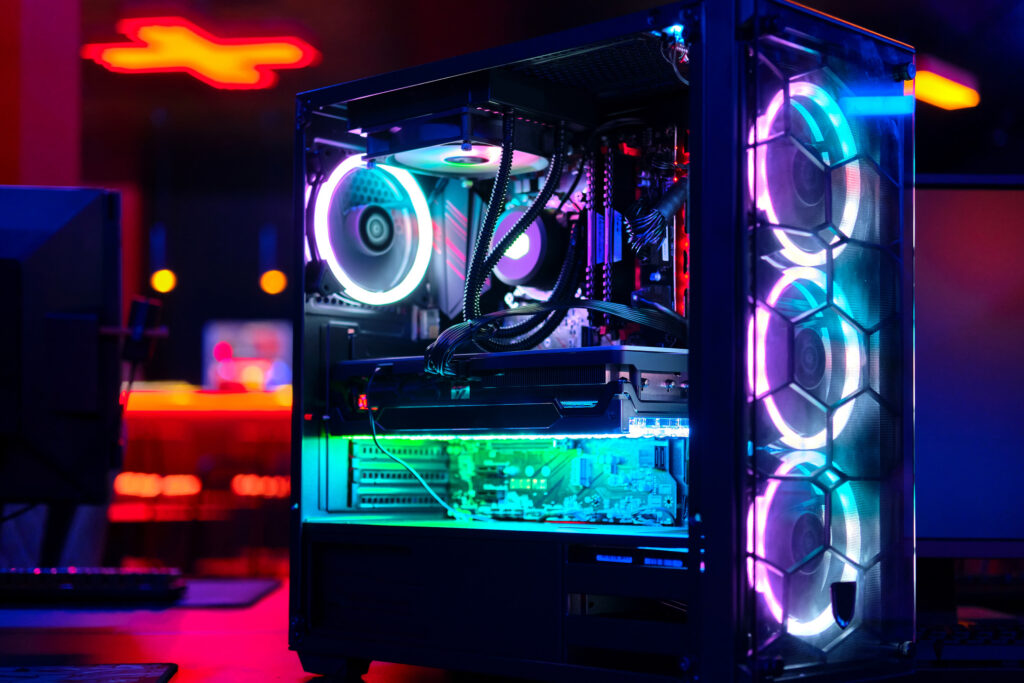
Recently, I was contacted through a Google Ad by Jonathan, who was having a serious issue with his custom-built gaming PC. The system powered on, but there was no display at all. The power button on the case kept blinking, and no matter what he tried, nothing appeared on the screen.
To make things more confusing, the same monitor worked perfectly when he connected a PlayStation 5. That ruled out the monitor and cable immediately.
Step 1: Ruling out the basics (the right way)
When I arrived on-site, we took a careful, methodical approach:
- Tested known-good HDMI and DisplayPort cables
- Confirmed the monitor input was correct
- Reseated the graphics card
- Verified GPU power connections
- Reset the motherboard’s CMOS
At this point, many people jump straight to “bad GPU.” But the symptoms didn’t quite line up — especially the blinking power button, which often indicates a system failing to complete its startup process (POST).
Step 2: Memory testing revealed an important clue
Next, we tested the system with one RAM stick at a time.
This turned out to be a critical step. With one memory module installed, the system behaved slightly differently than with the other. That told me the system was responding to hardware changes — a strong sign that the problem was deeper than a simple loose cable or bad monitor.
At this stage, we had ruled out:
- The monitor
- The cables
- The graphics card seating
- Basic BIOS configuration
What remained was motherboard-level failure, something that can’t be reliably repaired in a living room.
Step 3: Escalating to bench-level repair (and why that matters)
Rather than guessing or forcing part swaps on-site, I recommended bringing the PC to a trusted local repair shop for deeper, bench-level diagnostics.
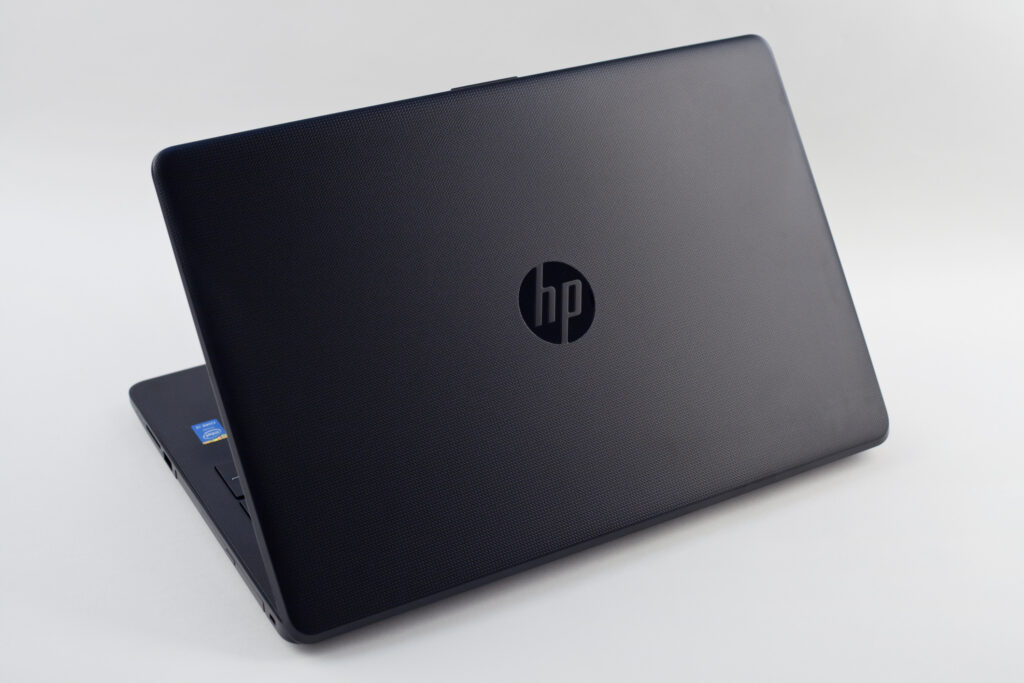
The system was taken to Neighbor Computer Services in Eastchester, New York, a shop I’ve now worked with on multiple occasions. In fact, this was the second job in a row where we collaborated — the previous one involved diagnosing and resolving a cooling fan issue on another client’s HP Pavilion laptop.
That kind of continuity matters. When a repair goes beyond what should be handled safely in a home or office, having a reliable shop to escalate to makes all the difference.
After testing the system, Neighbor Computer Services confirmed the root cause: a corrupted BIOS chip on the motherboard. The fix required soldering a new BIOS chip directly onto the board, a precision repair that requires specialized tools and experience.
This isn’t something that can be fixed with settings changes or a standard BIOS update — and it’s not something that should be attempted during an on-site visit.
I’ll share a follow-up once the repair is completed and the system is back up and running.