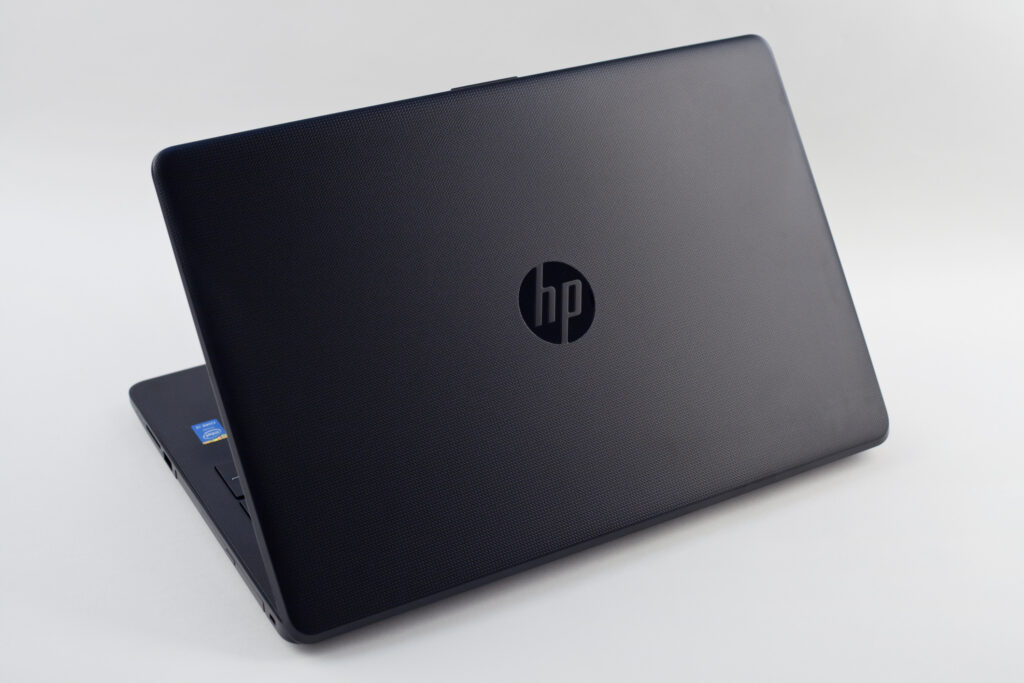
A client recently reached out to me after his HP laptop began displaying a warning message at startup indicating a cooling fan failure. The system warned that continued use could lead to overheating, unexpected shutdowns, or even permanent damage — not something you want to ignore.
At first glance, this kind of error can feel ominous. Many people assume it means the laptop is “done” and start shopping for a replacement. In this case, however, that turned out not to be necessary.
Step 1: Confirm the Problem (Safely)
After powering on the laptop, I was able to reproduce the BIOS error consistently. The fan was spinning, but it was clearly struggling and making abnormal noise. Given the nature of cooling issues — and the risk they pose to internal components — I avoided forcing the system to run longer than necessary.
Before attempting any invasive repairs, I wanted to confirm the diagnosis properly and make sure there were no additional underlying issues.
Step 2: Professional Diagnostics
To validate what I was seeing, I brought the laptop to Micro Center for a full hardware and software diagnostic. Their technicians confirmed:
- The cooling fan was indeed faulty and triggering the BIOS error
- All other system components passed diagnostics
- The battery was also nearing end-of-life
Unfortunately, due to the age of the laptop, Micro Center’s authorized vendors no longer carried the replacement fan. This is a common issue with older — but still perfectly usable — devices.
At this point, many repairs stop here, and clients are told replacement is the only option.
Step 3: Finding a Better Solution
Rather than advising the client to replace the laptop, I coordinated with a trusted local repair shop, Neighbor Computer Services, to explore alternative sourcing options.
They were able to:
- Locate and replace the correct cooling fan
- Replace the failing battery
- Apply fresh thermal paste to improve heat transfer
- Update the motherboard firmware
This combination addressed both the immediate error and the underlying thermal efficiency of the system.
Step 4: The Outcome
After the repair:
- The laptop booted cleanly with no BIOS errors
- Fan noise was gone
- System temperatures stabilized
- The laptop was once again reliable for daily use
Most importantly, the client avoided the expense and disruption of replacing a computer that was otherwise in good working condition.
Key Takeaways
This repair highlights a few important lessons:
- BIOS fan warnings should never be ignored, but they don’t always mean a device is beyond repair
- Second opinions matter, especially for hardware issues
- Local repair shops can sometimes source parts that larger vendors cannot
- Coordinated diagnostics and repairs can save clients significant time and money
Final Thoughts
Not every laptop problem has a one-click fix, and not every repair is something I handle entirely in-house. Sometimes, the best solution is knowing who to work with, how to validate a problem properly, and how to guide a client through the best available options.
If you’re dealing with a hardware issue and aren’t sure whether repair or replacement makes sense, I’m always happy to take a look and help you decide on the smartest next step.